

On plans that include more than one website, you can host extra domains in the same cPanel account. Each one gets its own folder, email addresses and SSL certificate. These are called addon domains.
Before you start
- You need to own the domain you're adding.
- Check how many websites your plan includes on our plans page.
Add the domain in cPanel
- In cPanel, open Domains → Domains.
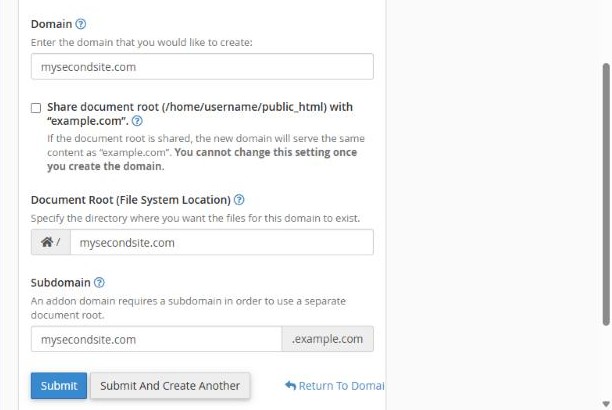
- Click Create A New Domain.
- Type the new domain, for example
mysecondsite.com. - Untick "Share document root". The new domain then gets its own folder and shows its own website.
- Check the Document Root. By default it's a folder named after the domain, for example
/home/username/mysecondsite.com. - Click Submit.
Point the domain to HTN Cloud
Add the same DNS records at the new domain's provider as for your main domain: A @, CNAME www and the email records if you'll use email on it. See Which DNS records to add at your domain provider.
Put a website on it
- Upload files to the new domain's folder, not to
public_html. See How to upload your website files. - Or install WordPress and choose the new domain in the Softaculous "Choose Domain" list. See How to install WordPress with Softaculous.
Tip: if you tick "Share document root", the new domain shows exactly the same website as your main domain. This is useful for a second spelling of your brand, but for a separate website leave it unticked.
