

A professional address like info@yourdomain.com builds trust with your customers. Here's how to create one in cPanel. It only takes a minute.
Create the email account
- In cPanel, open Email → Email Accounts.
- Click + Create.
- If you have more than one domain, choose the Domain.
- Type the Username, the part before the @, for example
info. - Choose Set password now and type a strong password, or click Generate and copy the password somewhere safe.
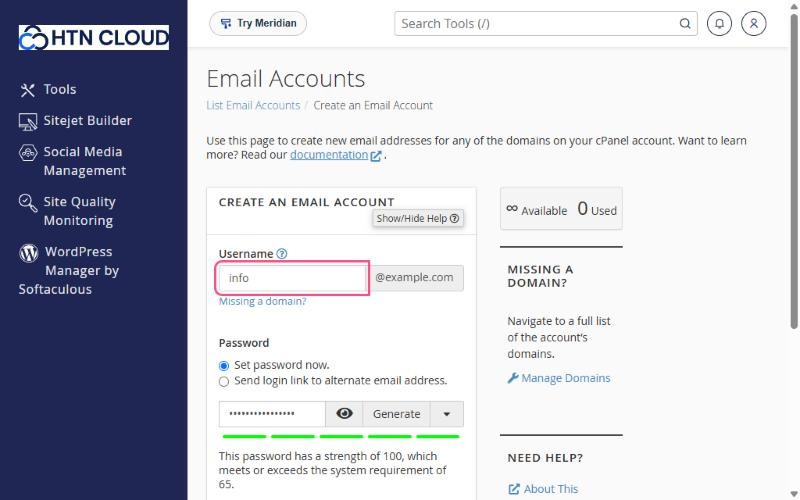
- Optional: click Edit Settings to change the mailbox Storage Space.
- Click + Create.
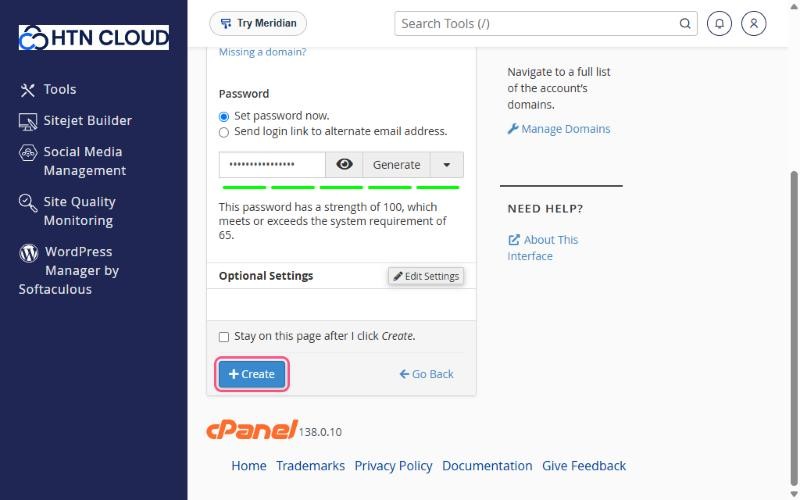
Your new address appears in the list of email accounts, ready to use.
What's next?
- Read your email in the browser with webmail. See How to access webmail.
- Add it to Outlook, your phone or another mail app. See Email settings for mail apps (IMAP, POP3 and SMTP).
- Make sure your domain's MX records point to us, or you won't receive email. See Which DNS records to add at your domain provider.
Tip: the option Send login link to alternate email address is handy when you create a mailbox for someone else. They get a link and choose their own password.
Mailbox storage
Each mailbox has its own storage limit, which you can raise or lower at any time. All mailboxes share your plan's disk space. See How to change an email password or mailbox size.
