

Use these settings to add your HTN Cloud email to any mail app: Outlook, Apple Mail, Thunderbird, Gmail on Android and others.
Find your exact settings
- In cPanel, open Email → Email Accounts.
- Click Connect Devices next to your email address.
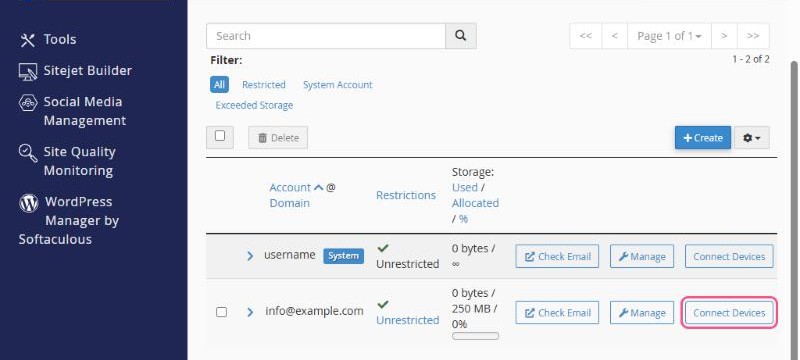
Under Mail Client Manual Settings you'll see the exact server names for your account:
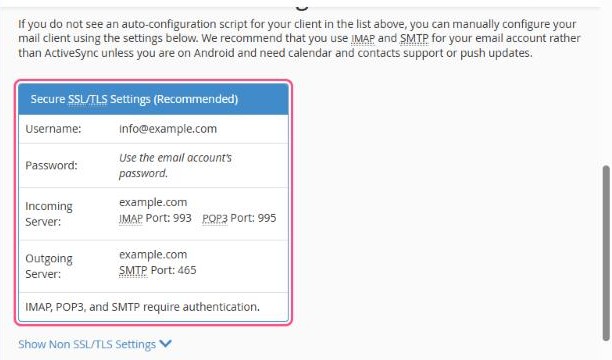
Recommended settings (secure)
| Setting | Value |
|---|---|
| Username | Your full email address, e.g. info@yourdomain.com |
| Password | The email account's password |
| Incoming server | As shown in Connect Devices, usually yourdomain.com or mail.yourdomain.com |
| IMAP port | 993 (SSL/TLS) |
| POP3 port | 995 (SSL/TLS) |
| Outgoing server (SMTP) | Same as the incoming server |
| SMTP port | 465 (SSL/TLS). If your network blocks it, use 587 with STARTTLS. |
| Authentication | Required for IMAP, POP3 and SMTP. Use the same username and password. |
IMAP or POP3?
- IMAP (recommended): your email stays on the server and syncs across all your devices. Read it on your phone and it shows as read on your computer too.
- POP3: downloads email to one device. Only use it if you have a specific reason.
Step-by-step guides
- How to set up your email in Microsoft Outlook
- How to set up your email on iPhone and iPad
- How to set up your email on Android
Tip: on the Connect Devices page you can also download automatic setup files for Apple Mail (iPhone, iPad and Mac) and Thunderbird. Download, open and you're done.
