

An autoresponder sends an automatic reply to everyone who emails you. It's perfect for holidays ("I'm out of the office until Monday") or to confirm that you've received a message.
Set up an autoresponder
- In cPanel, open Email → Autoresponders.
- Click Add Autoresponder.
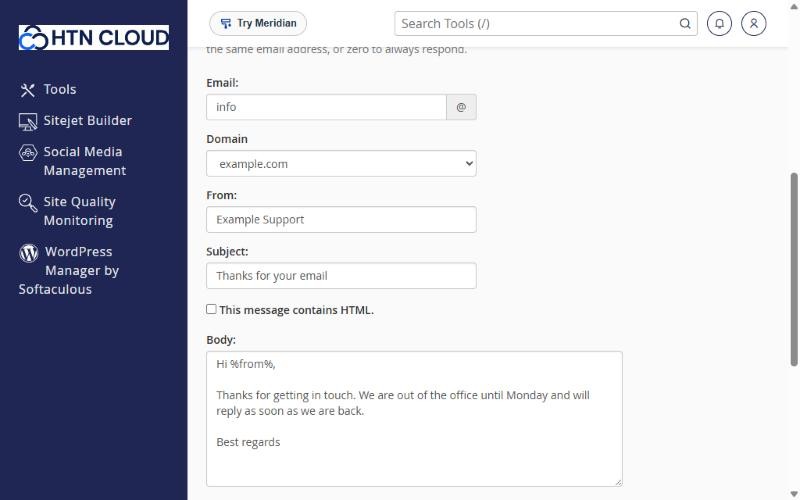
- Fill in the form:
- Interval: how many hours to wait before replying to the same sender again. For example,
8or24stops people getting a reply to every single email. - Email and Domain: the address that should send the automatic reply.
- From: the name shown on the reply, for example your name or your company's name.
- Subject and Body: your message.
- Interval: how many hours to wait before replying to the same sender again. For example,
- Under Start, choose Immediately or a date and time.
- Under Stop, choose Never or pick the date your holiday ends. The reply then turns off automatically.
- Click Create.
Handy tags
You can use these in the subject or body:
%from%: the sender's name%subject%: the subject of their email%email%: the sender's email address
Example: Hi %from%, thanks for your message about "%subject%". I'm away until Monday and will reply as soon as I'm back.
Tip: make sure a mailbox (or forwarder) exists with the same address. Otherwise the original emails are answered but not kept.
You can also set up an out-of-office reply from webmail: Settings → Out of Office in Roundcube. See How to access webmail.
