

Every HTN Cloud account has spam filtering switched on. Suspicious messages are scored automatically and those that look like spam go to a separate Spam folder, not your inbox.
How it works
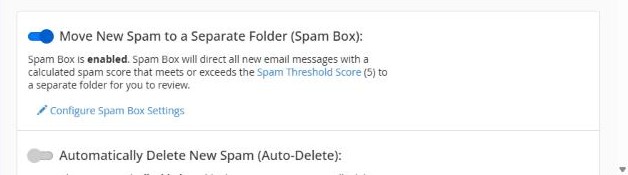
- Spam filter (Apache SpamAssassin): always on. Each new message gets a spam score.
- Spam Box: on by default. Messages at or above the spam threshold go to the Spam folder of the mailbox. Check this folder now and then, in webmail or your mail app.
- Auto-Delete: off by default. It deletes high-scoring spam permanently. We recommend leaving it off, so you never lose a real email by mistake.
You'll find these settings in cPanel under Email → Spam Filters.
Getting too much spam?
- Open Email → Spam Filters.
- Click the Spam Threshold Score link and choose a lower number. A lower score filters more aggressively. Change it one step at a time.
- Click Show Additional Configurations, then Edit Spam Blacklist Settings, to always treat a specific sender or domain as spam, for example
*@annoying-sender.com.
Real emails going to spam?
- Under Show Additional Configurations, use Edit Spam Whitelist Settings to always allow a sender, for example
*@yourbank.com. - In your mail app, move the message back to the inbox and mark it as "Not spam".
Tip: the Spam folder fills up over time and uses disk space. Empty it now and then.
If your emails land in other people's spam folders, see How to set up SPF, DKIM and DMARC for your domain and Troubleshooting: emails not sending, not arriving or going to spam.
