

You can change the password or the storage space of any email account from cPanel. There's no need to delete and recreate it.
Open the account settings
- In cPanel, open Email → Email Accounts.
- Click Manage next to the email address.
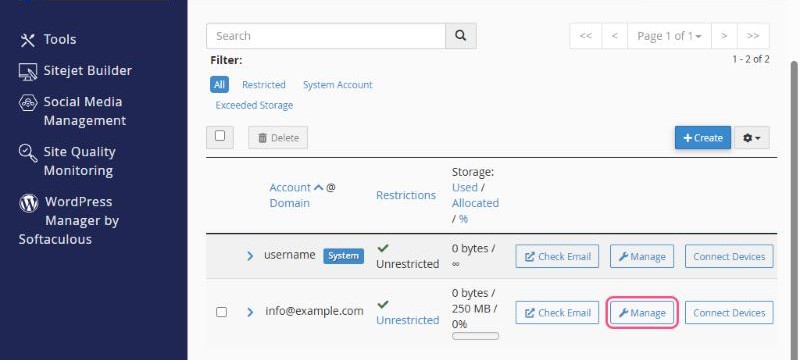
Change the password
- Under Security, type a new password in New Password, or click Generate.
- Scroll down and click Update Email Settings.
- Update the password in all your mail apps and on your phone. Until you do, they'll keep asking for it.
Change the storage space
- Under Storage, set Allocated Storage Space to a new size in MB, or choose Unlimited to let the mailbox use your plan's free space.
- Click Update Email Settings.
When a mailbox is full, new messages bounce back to the sender. The storage bar on the Email Accounts page shows how full each mailbox is.
Other useful options on the same page
- Restrictions: temporarily suspend receiving, sending or logging in, for example when an employee leaves.
- Delete Email Account: removes the mailbox and all its messages. This can't be undone, so back up anything you need first.
Tip: to see which folders take the most space and clean them up, use Email → Email Disk Usage.
