

File Manager lets you manage your website's files right in your browser. You can upload, edit, move and delete files without installing any software.
Open File Manager
In cPanel, open Files → File Manager. It opens in a new tab.
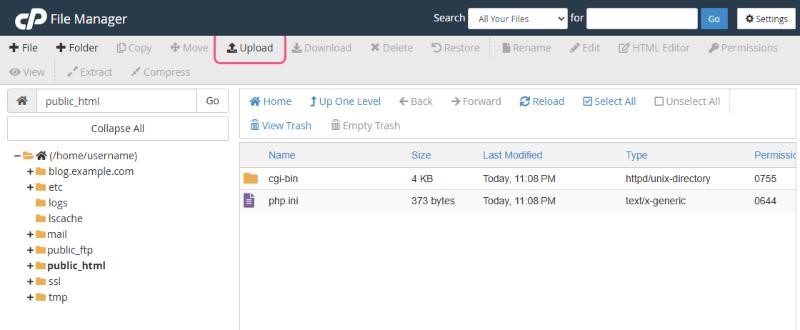
Finding your way around
- Left panel: your folder tree. Your home folder is at the top.
- Right panel: the contents of the selected folder.
- Toolbar: actions such as + File, + Folder, Copy, Move, Upload, Download, Delete, Rename, Edit, Permissions, Extract and Compress.
Important folders
| Folder | What it's for |
|---|---|
public_html | Your main website. Files here are visible on the internet. |
yourseconddomain.com | Folders for addon domains and subdomains, if you've created them |
mail | Your email storage. Don't edit these files by hand. |
logs, tmp, etc, ssl | System folders. Leave these as they are. |
Everyday tasks
- Edit a file: select it and click Edit. Make your change and click Save Changes.
- Unzip an archive: select the
.zipfile, click Extract and choose the folder. - Create a zip (for a quick backup): select files or folders, click Compress and choose Zip Archive.
- Restore a deleted file: click View Trash, select the file and click Restore.
Can't see files like
.htaccess? Files starting with a dot are hidden. Click Settings (top right), tick Show Hidden Files (dotfiles) and save.Before editing an important file such as
.htaccess or wp-config.php, make a copy first. Select it, click Copy and save it as, for example, .htaccess-backup.Related: How to upload your website files · File and folder permissions explained
