

If you have a ready-made website, for example from a developer or exported from another host, you can upload it with File Manager or FTP.
Where to upload
- Main domain: the
public_htmlfolder - Addon domain or subdomain: the folder shown as its Document Root in Domains → Domains
Your home page must be named index.html or index.php and sit directly in that folder, not in a subfolder.
Method 1: File Manager (best for a zip file)
- On your computer, put all your website files into one .zip file.
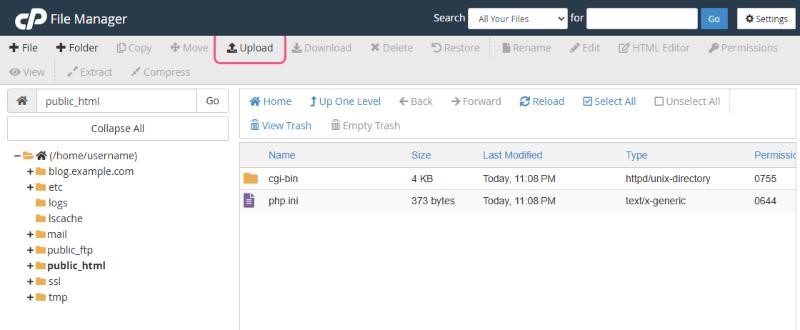
- In cPanel, open Files → File Manager and open
public_html. - Click Upload and choose your zip file. Wait until the progress bar reaches 100%, then click Go Back.
- Select the zip file and click Extract. Confirm the folder
/public_html. - If the files were extracted into a subfolder, for example
public_html/mysite/, open it, select all files, click Move and move them to/public_html. - Delete the zip file to save space.
Method 2: FTP (best for many files or regular updates)
Use a free FTP program such as FileZilla to drag and drop files from your computer. See How to create an FTP account and How to connect with FileZilla.
Websites with a database
If your site uses a database, as WordPress and most shops do, you also need to:
- Create a new database and user. See How to create a MySQL database and user.
- Import your database file (
.sql). See How to import or export a database with phpMyAdmin. - Update your site's configuration file with the new database name, user and password. For WordPress, that's
wp-config.php.
Tip: a new account may contain placeholder files in
public_html, such as a default index.html. Delete or replace them so your own home page shows.