

FTP accounts let you, or someone you trust such as a web designer, upload files with an FTP program. You can limit each FTP account to one folder, so it can't see anything else in your hosting.
Create an FTP account
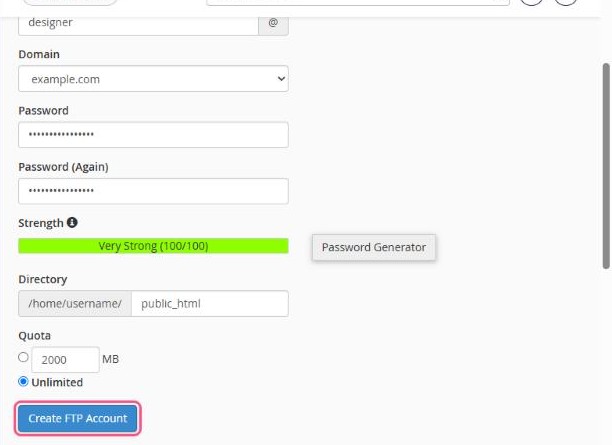
- In cPanel, open Files → FTP Accounts.
- Log In: choose a username (for example
designer) and the domain. The full username becomesdesigner@yourdomain.com. - Password: type a strong password or use the Password Generator.
- Directory: the folder this account can access.
public_htmlgives access to your main website.- Leave the suggested folder for a separate, empty area.
- Be careful with an empty directory: it gives access to your whole home folder.
- Quota: limit how much the account can upload, or leave it Unlimited.
- Click Create FTP Account.
Connection settings
Scroll down to FTP Accounts and click Configure FTP Client next to the account to see its settings:

| Username | the full FTP username, e.g. designer@yourdomain.com |
|---|---|
| Server / Host | ftp.yourdomain.com if you added an A record for ftp, otherwise yourdomain.com |
| Port | 21 |
| Encryption | Use explicit FTP over TLS (FTPS) for a secure connection |
Your main cPanel FTP account
Under Special FTP Accounts there's also an account with your cPanel username. It can access your whole home folder and uses your cPanel password. For day-to-day work and especially when you give access to others, create a separate FTP account instead.
