

With the Softaculous installer you can have a WordPress website ready in about a minute. It creates the database and sets everything up for you.
Before you start
- We recommend using a recent PHP version, 8.2 or newer. See How to change your PHP version.
- For a secure
https://address from the start, your domain should already point to HTN Cloud. See How to point your domain to HTN Cloud.
Install WordPress
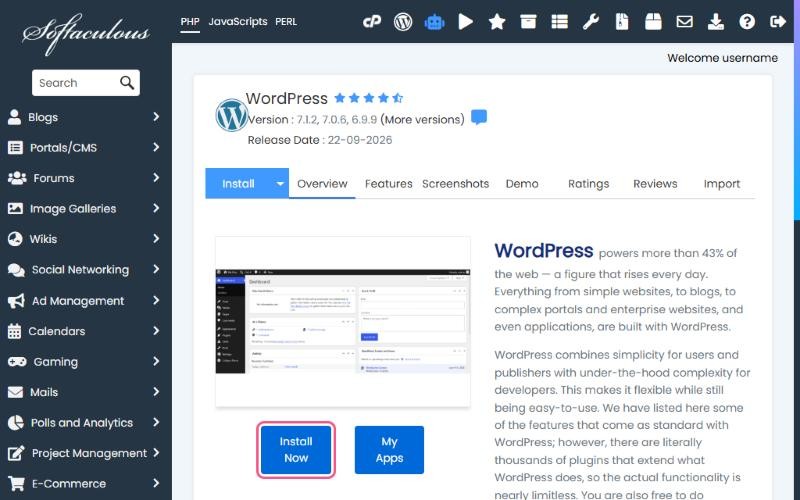
- In cPanel, open Software → Softaculous Apps Installer and click WordPress.
- Click Install Now.
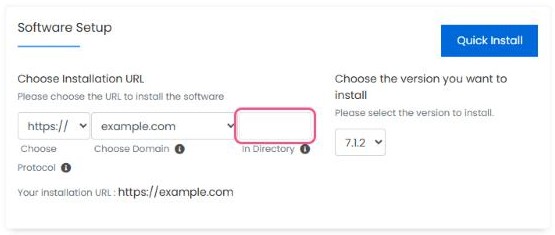
- Under Software Setup:
- Choose Protocol:
https:// - Choose Domain: the domain for this website
- In Directory: leave empty to install at
yourdomain.com. If you type something, such aswp, the site ends up atyourdomain.com/wp.
- Choose Protocol:
- Under Site Settings, enter your website's name and a short description. You can change both later in WordPress.
- Under Admin Account:
- Change the username from
adminto something personal. It's much harder to guess. - Click the key icon to generate a strong password and save it somewhere safe.
- Enter your real email address. WordPress sends password resets there.
- Change the username from
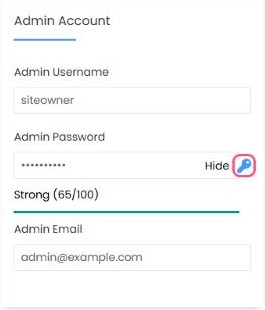
Important: don't keep the default username and password in the form. Always choose your own username and a strong password.
- Under Select Plugins, some optional plugins may be ticked. Untick any you don't want. You can always add plugins later.
- Click Install at the bottom of the page and wait until it finishes.
Log in to WordPress
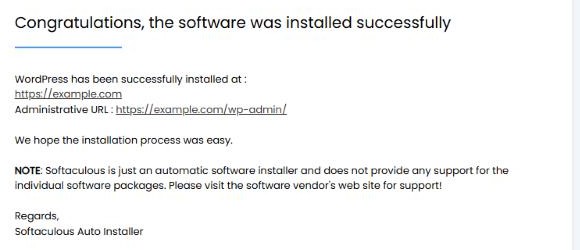
Go to https://yourdomain.com/wp-admin and log in with the admin username and password you chose. You can also log in with one click from WordPress Manager. See How to manage WordPress with WordPress Manager.
Tip: if you see an existing
index.html warning, Softaculous found files in the folder already. Remove old placeholder files from public_html first, or install in a different folder.