

WordPress Manager by Softaculous gives you one place to look after all the WordPress sites in your account: log in with one click, keep them updated and change common settings.
Open WordPress Manager
In cPanel, open Software → WordPress Manager by Softaculous. It's also in the left sidebar. You'll see a list of your WordPress installations.
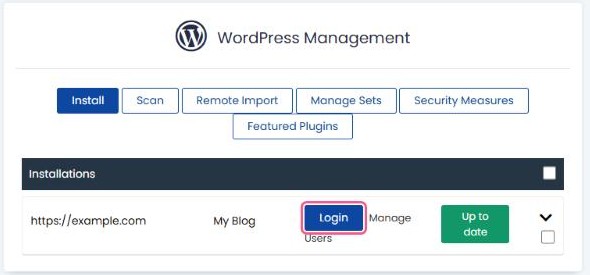
What you can do
- Login: opens your WordPress dashboard without typing a password.
- Manage Users: reset a WordPress user's password if you've forgotten it.
- Up to date / Upgrade: shows whether WordPress needs an update and lets you update with one click.
Click the arrow on the right of an installation to see more options:
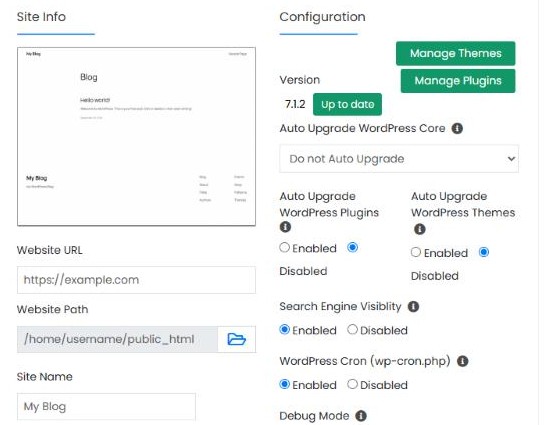
- Auto Upgrade WordPress Core: we recommend at least Upgrade to Minor versions only. Minor versions carry security fixes.
- Auto Upgrade WordPress Plugins / Themes: keeps plugins and themes updated automatically.
- Manage Plugins / Manage Themes: turn plugins on or off, even if WordPress itself won't load.
- Search Engine Visibility: turn it off while your site is still in progress. Turn it back on when you go live.
- Debug Mode: shows PHP errors. Only turn it on briefly while fixing a problem.
Tip: the Security Measures button at the top applies recommended hardening settings to your WordPress sites in one go.
Installed WordPress yourself?
If you installed WordPress manually, it may not appear in the list. Click Scan at the top to find it and add it.
