

SitePad is a drag-and-drop website builder included with your hosting. Pick a theme, change the text and images and publish. No coding needed.
Open SitePad
In cPanel, open Software → SitePad Website Builder.
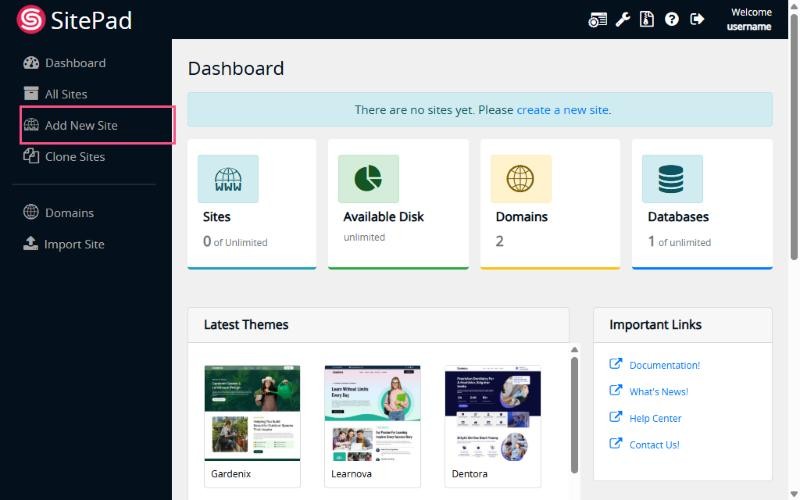
Create your site
- Click Add New Site.
- In the first step (Let's start), choose:
- Site Address:
https://, your domain and optionally a directory. Leave it empty for the main address. - Name of the website and a Category that describes your business.
- Site Language.
- Site Address:
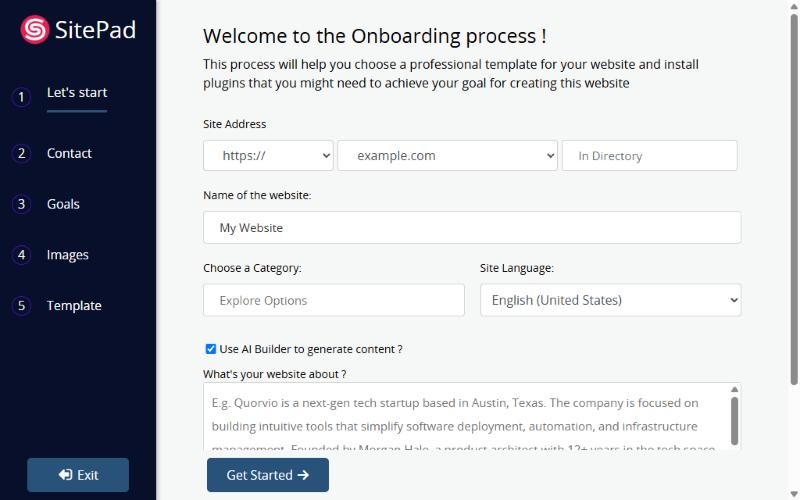
- Optionally, tick Use AI Builder to generate content and describe your website in a few sentences. SitePad writes first drafts of your texts.
- Click Get Started and go through the next steps: Contact, Goals, Images and Template.
- Pick a template you like. SitePad builds your site and you can then edit every page in the visual editor.
- When you're happy, click Publish.
Editing later
Open SitePad again from cPanel and go to All Sites. Click Edit to change content, add pages or switch themes, then publish again.
One site per address: SitePad and WordPress can't share the same address. If WordPress is already installed on your domain, remove it first or use SitePad on a subdomain.
Prefer more flexibility? See How to install WordPress with Softaculous.
