

Some tasks need higher PHP limits than the defaults, for example uploading a large theme, importing a big database or running a heavier plugin. You can change the most common settings yourself.
Change PHP options
- In cPanel, open Software → Select PHP Version.
- Click the Options tab.
- Click the value next to the setting you want to change and pick a new one. It's saved automatically.
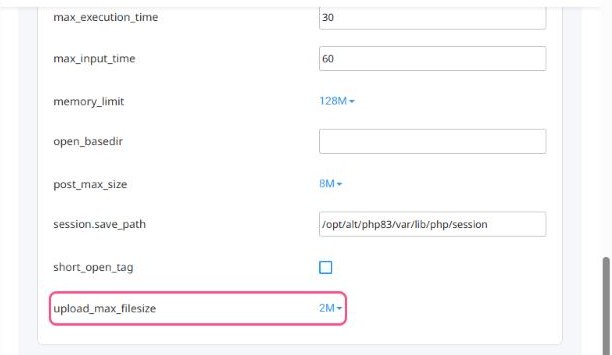
The most useful settings
| Setting | What it does | Suggested value |
|---|---|---|
upload_max_filesize | Largest single file you can upload through your website | 64M or 128M |
post_max_size | Largest total size of a form or upload | the same as or larger than upload_max_filesize |
memory_limit | Memory one PHP script may use | 256M for WordPress sites with many plugins |
max_execution_time | Seconds a script may run | 60 to 300 for imports |
display_errors | Shows errors on your web pages | Off on live sites |
WordPress says "The uploaded file exceeds the upload_max_filesize directive"? Raise
upload_max_filesize and post_max_size here, then reload the WordPress page.Good to know
- These options apply to the PHP version selected for your account. If you switch PHP versions, check them again.
- Don't set values much higher than you need. A very high memory limit won't make your site faster.
Related: How to change your PHP version
