

You can run Node.js applications, such as an Express API or a small web app, directly from cPanel. No server administration needed.
Create the application
- In cPanel, open Software → Setup Node.js App.
- Click Create Application.
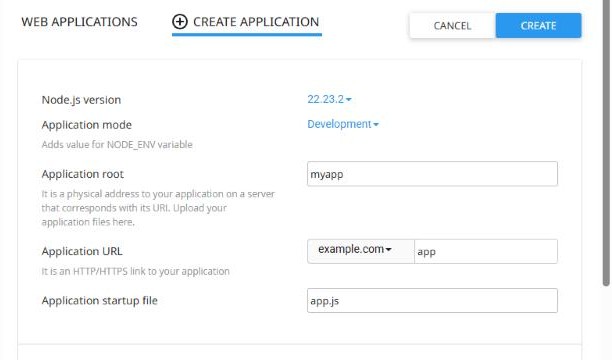
- Fill in the form:
- Node.js version: choose a current LTS version, for example 22 or 24.
- Application mode: Production for a live site, Development while testing.
- Application root: the folder for your app's files, for example
myapp. Keep it outsidepublic_html. - Application URL: the domain and, optionally, a path, for example
yourdomain.com/app. - Application startup file: your entry file, for example
app.jsorserver.js.
- Add any Environment variables your app needs, such as API keys or settings.
- Click Create.
Upload your code and install packages
- Upload your app's files, including
package.json, to the application root with File Manager or FTP. Don't upload thenode_modulesfolder. - Back on the Setup Node.js App page, click the pencil icon to edit your app.
- Click Run NPM Install to install the packages from
package.json. - Click Restart.
Tips
- You don't need to choose a port. The server passes it to your app automatically, so use
process.env.PORTin your code. - After changing code or environment variables, click Restart for the changes to take effect.
- If the app shows an error, check the log file in the application root (if you set one), or run it in Development mode to see more details.
Good to know: Node.js apps on shared hosting are meant for websites and APIs that respond to web requests. Long-running background jobs are better handled with cron jobs. See How to set up a cron job.
