

A cron job runs a command automatically on a schedule, for example a script that sends reminders every hour or cleans up old data every night.
Add a cron job
- In cPanel, open Advanced → Cron Jobs.
- Optional: under Cron Email, enter an email address to receive the output of your cron jobs.
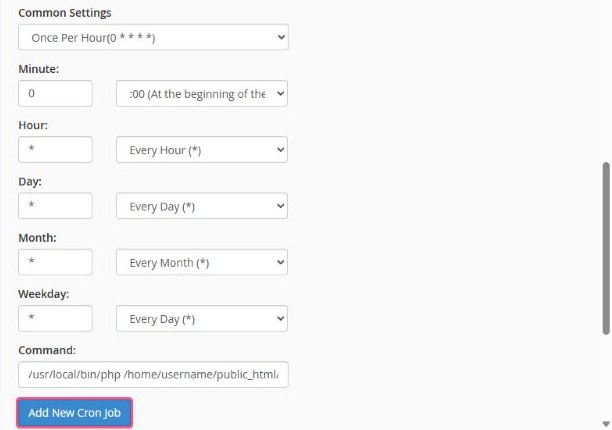
- Under Add New Cron Job, choose a schedule from Common Settings, for example Once Per Hour, or fill in minute, hour, day, month and weekday yourself.
- Enter the Command to run (see examples below).
- Click Add New Cron Job.
Command examples
Run a PHP script (replace username with your cPanel username):
/usr/local/bin/php /home/username/public_html/cron.phpCall a web address:
/usr/bin/curl -s https://yourdomain.com/cron-task >/dev/null 2>&1Adding >/dev/null 2>&1 at the end stops cPanel from emailing you every time the job runs.
WordPress tip
WordPress runs its scheduled tasks when someone visits your site. On busy or very quiet sites, a real cron job is more reliable:
- Add
define('DISABLE_WP_CRON', true);towp-config.php, or use the WordPress Cron switch in WordPress Manager. - Add a cron job every 15 minutes with:
/usr/local/bin/php /home/username/public_html/wp-cron.php >/dev/null 2>&1
Please don't run jobs every minute unless you really need to. Frequent heavy jobs use your account's resources and can slow your website down.
