

cPanel is the control panel for your hosting account. Everything you need to run your website and email is in one place. Here's a quick look around.
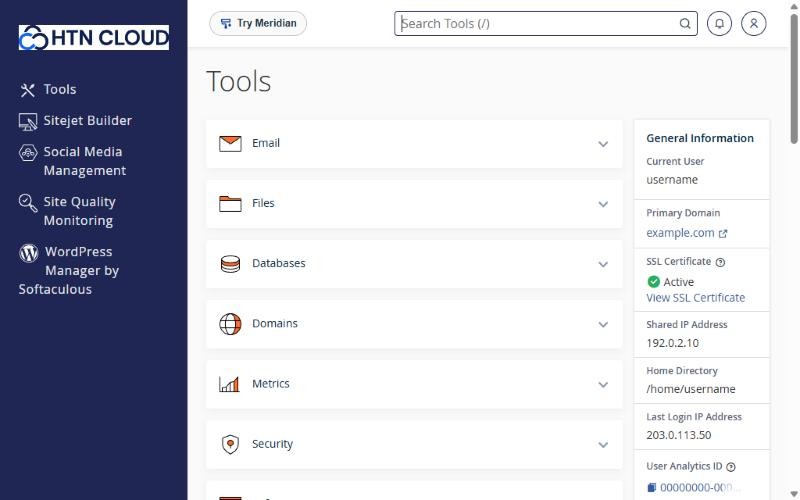
The Tools page
The main page groups tools into sections. Click a section name to open it:
- Email: create mailboxes, forwarders, autoresponders and spam settings.
- Files: File Manager, FTP accounts, disk usage and backups.
- Databases: MySQL and PostgreSQL databases, phpMyAdmin.
- Domains: add websites and subdomains, redirects and the DNS Zone Editor.
- Metrics: visitor statistics, bandwidth and error logs.
- Security: SSL certificates, two-factor authentication, IP blocking and more.
- Software: Softaculous app installer, WordPress Manager, SitePad, PHP version and Node.js.
- Advanced: cron jobs, custom error pages and other tools.
- Preferences: your password, contact details and language.
The search box
At the top of every page there is a Search Tools box. Type what you're looking for (for example "email" or "php") and jump straight to it. Press / on your keyboard to go to the search box quickly.
The General Information panel
On the right you'll find your cPanel username, your primary domain, the status of your SSL certificate and your Shared IP Address. You need the IP address when you point your domain to us.
Statistics
Scroll down the right-hand side to see how much disk space, bandwidth and how many email accounts and databases you're using. See How to check your disk space and resource usage.
