

Once your SSL certificate is active, you'll want every visitor to use the secure https:// version of your site, even if they type http://. cPanel has a simple switch for this.
Before you start
Check that your domain has a valid certificate: in cPanel, open Security → SSL/TLS Certificates (the Status tab). See Free SSL certificates: how AutoSSL works. If you turn on HTTPS before the certificate is issued, visitors see a security warning.
Turn on Force HTTPS Redirect
- In cPanel, open Domains → Domains.
- Find your domain and switch Force HTTPS Redirect to On.
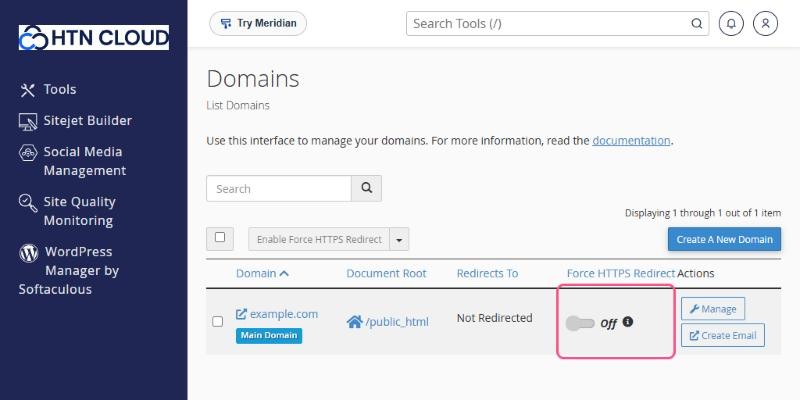
From now on, every http:// request is automatically sent to https://.
If the switch is greyed out or shows a warning, the domain doesn't have a valid certificate yet.
WordPress users
- In WordPress, go to Settings → General.
- Make sure both WordPress Address (URL) and Site Address (URL) start with
https://. - Save. You may need to log in again.
Padlock missing or "mixed content" warning?
Your page is secure, but some images, scripts or styles still load over http://. Check your theme settings and page content for http:// links and change them to https://. For WordPress, a search-and-replace plugin can update old links in the database in one go.
