

Two-factor authentication (2FA) adds a second step when you log in to cPanel. Besides your password, you enter a 6-digit code from an app on your phone. Even if someone steals your password, they can't get in without your phone.
What you need
An authenticator app on your phone, for example Google Authenticator, Microsoft Authenticator, Authy or your password manager's built-in authenticator.
Turn on 2FA
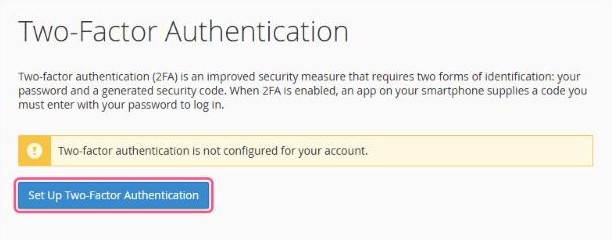
- In cPanel, open Security → Two-Factor Authentication.
- Click Set Up Two-Factor Authentication.
- Open your authenticator app, add a new account and scan the QR code shown in cPanel. If you can't scan it, type the key shown below the code.
- Enter the 6-digit code from the app in the Security Code box.
- Click Configure Two-Factor Authentication.
From now on, cPanel asks for a code from your app every time you log in with your password.
Don't lose access: when you get a new phone, move your authenticator accounts to it before you reset the old one. If you're locked out, open a support ticket from the client area.
