

Your account includes Imunify360, a security tool that scans your files for malware. It checks new and changed files in real time and flags anything suspicious.
Open Imunify360
In cPanel, open Security → Imunify360.
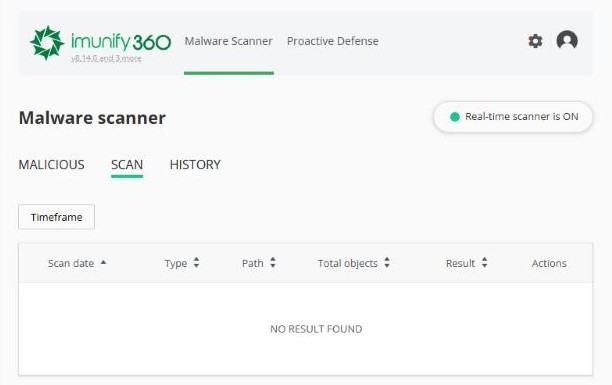
- Real-time scanner is ON: files are checked automatically as they're uploaded or changed.
- Malicious: lists any files flagged as malware, with the reason and what was done.
- Scan and History: show past scans of your account.
If a file is flagged
- Look at the file's path. It tells you which site and which plugin or theme it belongs to.
- If it's part of a plugin or theme, delete and reinstall that plugin or theme from its official source and update everything to the latest version.
- Change the passwords for cPanel, FTP and your website's admin users.
- If you're not sure the file is harmful, or need help cleaning up, open a support ticket with the file path. See How to contact support.
Also available: Virus Scanner
Advanced → Virus Scanner checks your home folder, email or website files for viruses on demand. It's handy after you've uploaded files from a computer you don't fully trust.
Prevention is easier than cleaning up. Most infected websites were running outdated plugins or themes, or used weak passwords. See Keeping your website secure: a simple checklist.
