

Your HTN Cloud account is backed up automatically, so if something goes wrong, such as a deleted file, a broken update or a hacked site, you can go back to an earlier version. You can restore most things yourself, in a few clicks.
What is backed up
Backups run twice a week and include:
- All your website files (your home directory)
- Your MySQL databases and database users
- Your email accounts and messages
- Domains, SSL certificates, cron jobs and FTP accounts
Where to find your backups
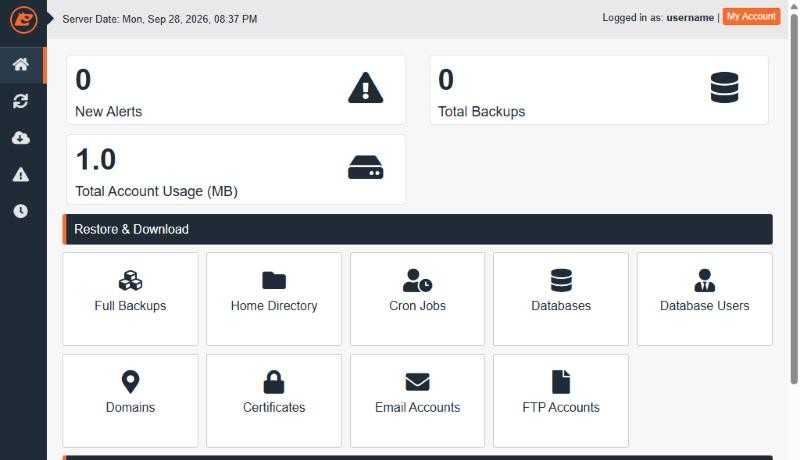
In cPanel, open Files → JetBackup 5. The dashboard shows how many backups are available, with shortcuts to restore or download each part of your account.
Restore guides
- How to restore files from a backup
- How to restore a database from a backup
- How to restore email from a backup
- How to download a backup of your account
Good to know
- A brand-new account has no backups yet. The first one is made at the next scheduled run.
- Restoring overwrites the current version with the one from the backup. If unsure, download the backup first or restore to a separate folder.
- Automatic backups are a safety net. Before big changes, also download your own copy. It only takes a minute.
Need help restoring? Open a support ticket with the date you want to go back to and what to restore. See How to contact support.
