

Deleted a file by mistake, or an update broke your site? You can restore individual files, folders or your whole website from a backup yourself.
Restore files or folders
- In cPanel, open Files → JetBackup 5.
- Click Home Directory under Restore & Download.
- You'll see a list of available backups, newest first. Find the date you want to go back to.
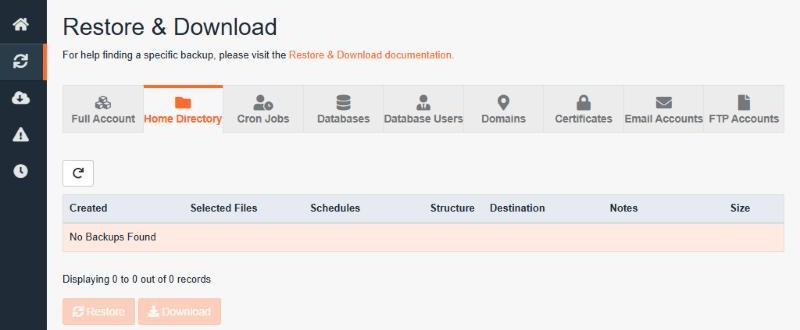
- To restore only certain files, click Change Files Selection (or the folder icon) for that backup and tick the files or folders you want, for example
public_html/wp-content/uploads. - Select the backup and click Restore.
- Confirm. The restore is added to the Queue. You can follow its progress there and it usually finishes within a few minutes.
Restoring overwrites files. Restored files replace the current versions with the same name. If you're not sure, first download the files you need (select the backup and click Download) and compare them before restoring.
Restoring a whole website
A website usually consists of files and a database. To bring back a WordPress site to a certain date:
- Restore the website's folder from Home Directory, as above.
- Restore its database from the same date. See How to restore a database from a backup.
Full account restore
The Full Account tab restores everything, including files, databases, email and settings, to one date. Use it only when you really want to roll back the entire account. If in doubt, open a support ticket first.
