

Keeping your own copy of your website is always a good idea, especially before a big update or redesign. There are two easy ways to download a backup.
Option 1: Download an automatic backup (JetBackup)
- In cPanel, open Files → JetBackup 5.
- Under Restore & Download, click Full Account, or a part such as Home Directory or Databases.
- Select the backup date and click Download.
- JetBackup prepares the file. When it's ready, you'll find it under Downloads in the JetBackup menu. Click to save it to your computer.
Option 2: Create a fresh backup now (cPanel Backup)
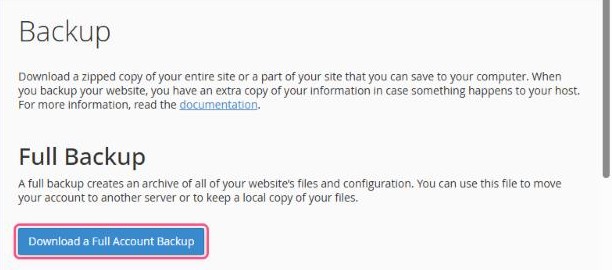
- In cPanel, open Files → Backup.
- Choose what you need:
- Download a Full Account Backup: everything in one archive. cPanel creates it in the background and emails you when it's ready. Then download it from the same page.
- Partial Backups: download just your Home Directory (website files), a single Database, or your Email Forwarders and Filters.
Tip: a full account backup is saved in your home folder until you download it and it counts towards your disk space. Once it's safely on your computer, delete it from File Manager.
Store it safely
Keep your backup somewhere other than your hosting account, for example on your computer and in a cloud drive. That way you always have a copy, whatever happens.
Related: About your backups
