

A strong, unique password is the best protection for your hosting account. You can change your cPanel password from the client area or from inside cPanel.
From the client area (recommended)
- Log in to the client area and go to Services → My Services.
- Click your hosting plan, then choose Change Password in the menu.
- Enter your new password twice and save.
This keeps the client area and cPanel in sync, so the Log in to cPanel button keeps working.
From cPanel
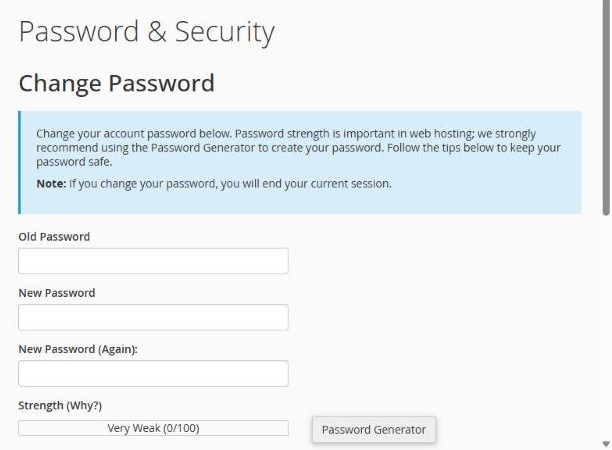
- In cPanel, open Preferences → Password & Security.
- Enter your old password, then your new password twice. We recommend the Password Generator button.
- Click Change your password now!. Your current session ends and you log in again with the new password.
Important: changing your cPanel password doesn't change your email account passwords or your WordPress admin password. Those are separate. See How to change an email password or mailbox size.
Forgot your password?
Log in to the client area and use Change Password on your hosting plan. You don't need the old password there. If you've also lost access to the client area, use Forgot Password? on the login page.
For extra protection, turn on two-factor authentication. See How to turn on two-factor authentication in cPanel.
